
- Casiku App UK: Mobile Access on iPhone and Android
- Choosing Your Casiku Mobile Access Route
- Opening Casiku on iPhone or Android
- Using a phone or tablet
- Saving a Casiku Home-Screen Shortcut
- Casiku Login and Registration on Mobile
- Registration and verification are different stages
- Reading Game Controls on a Smaller Screen
- Managing Payments and Account Requests from Your Phone
- Handling documents on mobile
- Browser Updates, Cookies and Permissions
- Resolving Common Mobile Access Problems
- Keeping Casiku Mobile Access Private
Casiku App UK: Mobile Access on iPhone and Android
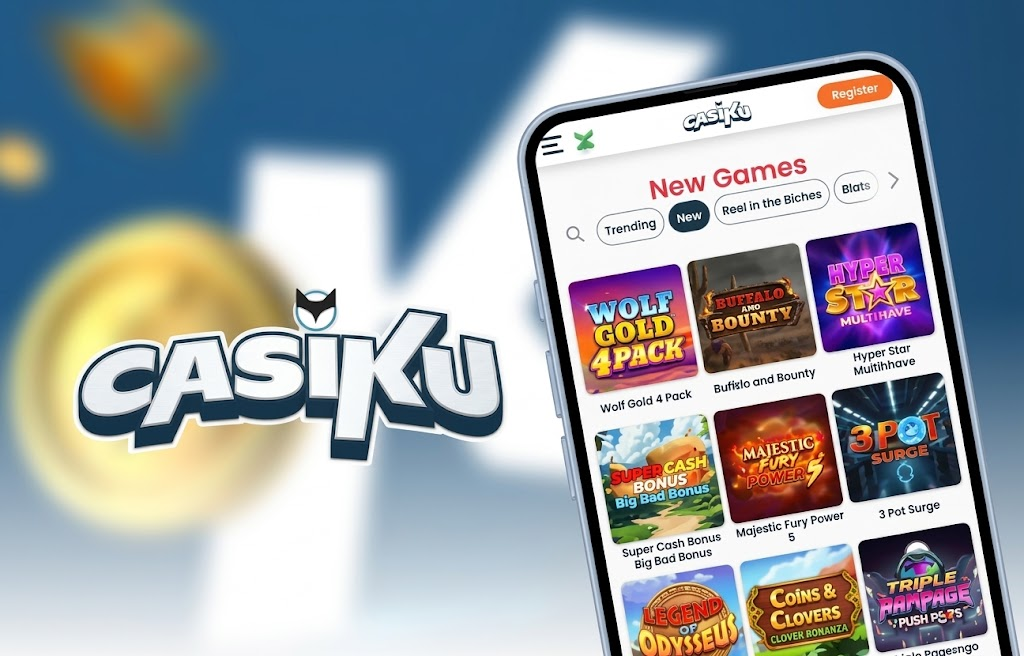
For players searching for the Casiku app, mobile browser access provides a straightforward way to use the casino on a smartphone or tablet. Start with the Casiku website, sign in through the account access screen and use the mobile layout. A browser session does not require an installation file, and a saved shortcut can make returning to the site easier.
The important distinction is between opening the casino website and installing software. A home-screen icon can link to a website without being a native app. Understanding that difference helps you choose the correct access route, manage browser settings and avoid downloading a file simply because it carries the Casiku name.
Choosing Your Casiku Mobile Access Route
Use the Casiku account website for registration, login and personal account information. A review or information page may explain the service, but it should not be treated as the place to enter your password or payment details.
Casiku’s own privacy documentation is published on casiku-uk-casino.com. It describes website accounts, payment processing and the handling of personal information. The Casiku Privacy and Cookie Notice explains how those data are used.
Before entering information, read the address in your browser. A familiar logo or a page headed Casiku download does not establish who operates the page.
| Access format | What it means | What to understand before using it |
|---|---|---|
| Mobile browser | A website opened in a browser on your phone or tablet | Your browser handles the session, cookies and website permissions |
| Home-screen shortcut | An icon that opens a saved website address | The icon alone does not establish that a native app has been installed |
| Native app | Software installed through an app store | The publisher and download destination should match the operator’s instructions |
| Android APK | An Android installation package | A branded filename does not establish its origin or authenticity |
For browser access, keep the address visible while confirming the destination. Once you have reached the correct site, save that address rather than repeatedly choosing a search advertisement.
Opening Casiku on iPhone or Android
The basic mobile access process begins in your browser. Prepare your login details before starting, and use a connection that remains stable while you move between account pages.
- Open your usual mobile browser.
- Navigate to the Casiku website and inspect the address.
- Use the account access or registration route displayed on the site.
- Enter your details carefully, checking any information inserted by autofill.
- Read any account messages before continuing.
- Save a bookmark if you want to return through the same address.
These steps concern website access. They do not require an APK, an iPhone configuration profile or permission to install software from an unknown source.
Using a phone or tablet
A phone is convenient for brief account tasks, while a tablet offers more space for forms and detailed information. On either device, make sure that important text remains readable before confirming an action.
Screen orientation can affect how a page fits. If a form extends beyond the visible area, try rotating the device or closing the on-screen keyboard. Return to a readable view before reviewing payment amounts or other important details.
Saving a Casiku Home-Screen Shortcut
A bookmark keeps the website address in your browser. A home-screen shortcut places an icon alongside your other apps, making the saved address easier to find.
Where your browser provides a shortcut option, open the correct Casiku page first, then use the browser’s sharing or menu controls to save it. The wording and placement of this option depend on your browser and operating system.
Choose the main website address rather than a temporary login link or a page reached during a payment. Temporary addresses may contain session information or lead to an incomplete process when reopened.
Removing a shortcut only removes that route from your device. It does not close a casino account, change a balance or cancel an account request.
Casiku Login and Registration on Mobile
For an existing account, use your registered credentials through the website. Moving from a computer to a phone should not be treated as a reason to register again. If you cannot remember your password, follow the recovery instructions presented through the account access route.
Mobile keyboards can introduce small errors that are difficult to spot. An extra space, automatic capitalisation or an outdated password saved by your browser can prevent the details from matching what you intended to enter.
Before submitting a form:
- Check the email address or username character by character.
- Review autofilled details instead of accepting them automatically.
- Use a unique password.
- Keep recovery messages private.
- Avoid saving credentials on a shared device.
Registration and verification are different stages
Registration creates an account record. Verification checks the information associated with it.
Casiku’s privacy notice identifies account information such as name, contact details, date of birth and address, and explains that personal data are used for identity and age checks. Enter accurate information and keep it current.
Completing a registration form does not, by itself, establish that every account check has been completed. Follow any further instructions presented for your account.
Reading Game Controls on a Smaller Screen
Before placing a wager, identify the stake control, displayed balance and game information. A compact layout can put several controls close together, so take time to understand what each one does.
Read the rules for the individual game you open. Those rules explain how stakes, outcomes and features work; a mobile layout does not change the need to understand them.
If the display is cramped, adjust the orientation or use a larger screen. Increasing a stake will not resolve a display or connection problem.
An interrupted connection also does not establish the outcome of a wager. After reconnecting, review any available result or transaction record before taking another action. If the position remains unclear, ask for clarification through the contact route displayed on the account website.
Managing Payments and Account Requests from Your Phone
A mobile payment involves more than entering an amount. It may also involve confirmation through a bank or payment provider, followed by a return to the casino website.
Read the payment instructions displayed for your account before submitting anything. The relevant details are the method offered, transaction amount, any stated limits or charges, and whether further confirmation is required. A mobile access guide should not be used as a substitute for those transaction-specific conditions.
If a payment opens another app or browser tab, complete that confirmation carefully and return to the original session. Avoid submitting the same request again solely because the page has not refreshed.
For withdrawals, distinguish between sending a request and receiving funds. A confirmation screen can acknowledge the request without establishing that settlement has finished. Keep the reference and status shown for your transaction.
Handling documents on mobile
Where an account process requests a document, follow its instructions for format and submission. A readable image should show the required information clearly, without glare or accidental cropping.
Use the submission route specified for the request. Do not send passwords, complete card details or identity documents to an address found on an unrelated download page.
Browser Updates, Cookies and Permissions
With browser access, maintaining your phone and browser is part of maintaining the experience. Install updates through your device’s normal update system, and restart the browser when an update requires it.
Website permissions should relate to the task you are completing. For example, selecting an existing document and taking a new photograph are different actions. Read the permission prompt before deciding whether access is necessary.
Casiku’s cookie notice explains that essential cookies support website functions, including logged-in sessions. Blocking or deleting cookies can affect those functions.
If you clear site data, expect that you may need to sign in again. Finish any active payment confirmation first, and make sure you can access your registered credentials.
Resolving Common Mobile Access Problems
Start with the issue you can actually observe. A frozen page, a rejected password and a payment awaiting confirmation need different responses.
| What you see | First practical check | Next action |
|---|---|---|
| The form contains incorrect details | Review autofill and keyboard changes | Correct the entries before submitting again |
| A saved password is rejected | Confirm that the browser has stored the intended credentials | Follow the account recovery instructions if needed |
| The page repeatedly asks you to sign in | Review whether essential site cookies are being blocked | Adjust the relevant site setting and reopen the session |
| Controls extend beyond the screen | Check orientation, keyboard visibility and browser zoom | Restore a readable layout before confirming an action |
| A payment page appears unchanged | Look for an outstanding provider confirmation or transaction status | Establish the status before repeating the request |
| A game session is interrupted | Check your connection and any available result record | Seek clarification if the wager outcome remains unclear |
When requesting help, describe the action you were taking and the exact message displayed. Include your device type, browser and the approximate time of the issue.
A screenshot can help explain a layout problem, but remove passwords, card details and unrelated personal information before sharing it.
Keeping Casiku Mobile Access Private
Protect both the account and the phone used to access it. A strong account password offers limited protection if someone else can unlock your device and open an active session.
Use a device screen lock, keep recovery details private and sign out after using a shared phone or tablet. If your password manager uses fingerprint or facial recognition, remember that this protects access to the password manager; it does not establish that the casino has a separate biometric login feature.
Treat unexpected download links and account messages carefully. Open the saved website address yourself when a message asks you to sign in, rather than entering credentials through an unfamiliar link.
Before each session, decide how much time and money you are prepared to spend. Mobile convenience does not change the financial risk of gambling. Finish when you reach your planned boundary, and avoid using notifications or easy access as a reason to extend play.
Download the Casiku Casino App Now
Android APK + iOS PWA - instant setup for UK players. Claim your mobile bonus on first login.
18+. T&Cs apply. UK players only. Please gamble responsibly.

Bonuses October 2026